
Chapter 18 — Plan mode
Plan mode is a two-phase workflow for tasks where you want the model to design an approach first, then watch it execute step by step:
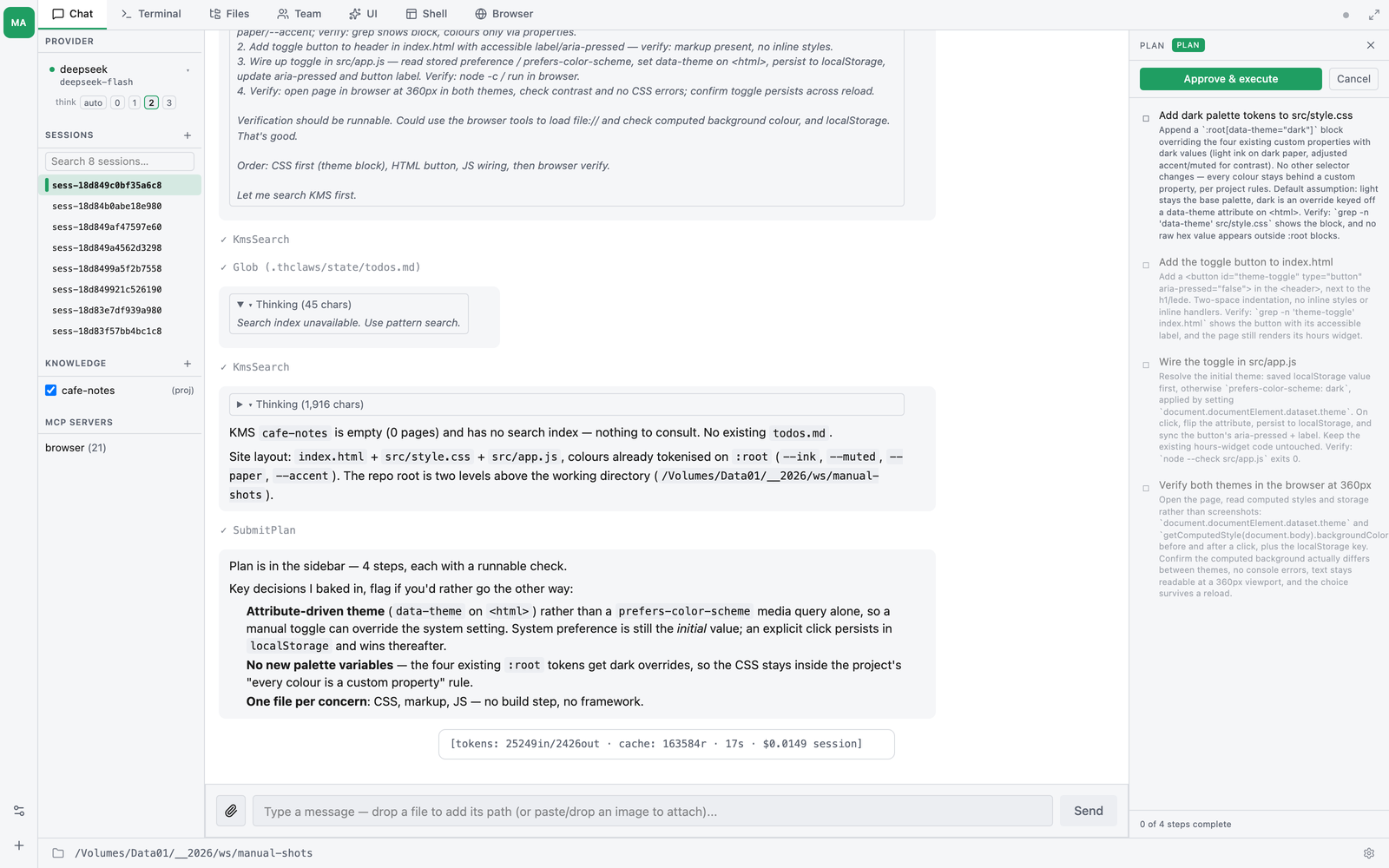
- Plan phase — the model is restricted to read-only tools (Read, Grep, Glob, Ls). It explores the codebase, reasons about an approach, then publishes a structured plan via
SubmitPlan. The right-side plan sidebar opens with the steps and an Approve / Cancel button row. No code changes happen yet. - Execution phase — once you click Approve, mutating tools unblock and the model marches through the steps. Each transition (in_progress → done) updates a checkmark in the sidebar live.
Combined with sequential gating (the model can’t start step 3 while step 2 is still in progress) and a stalled-turn detector (the sidebar surfaces a “Model seems stuck” banner if no progress for 3 turns), plan mode is the right tool for non-trivial tasks where you want full visibility on what the model is doing without watching every chat message.
Quick start
You:    /plan
        ↓ (mode flips to PLAN — sidebar pill turns cyan)
You:    submit a plan to add a /healthz endpoint to my web server
Model:  reads existing routes, drafts a 4-step plan
        ↓ sidebar opens with steps + Approve / Cancel
You:    [click Approve]
Model:  step 1 (in_progress) → writes new route handler → step 1 (done)
        step 2 (in_progress) → adds the test → step 2 (done)
        ...
        ↓ all steps ✓ → "All 4 steps complete" footer
Entering plan mode
Three ways:
| Trigger | Effect |
|---|---|
/plan (or /plan enter) |
Mode → Plan. Stashes the prior mode (auto / ask) so it’s restored when the plan completes. |
The model calls EnterPlanMode itself |
Same as /plan. Auto-flips without asking — the model decides “this is non-trivial, I should plan first”. |
/plan exit (or /plan cancel) |
Restores the prior mode. Clears any active plan. |
/plan status |
Prints the current mode + plan summary. |
Each subcommand has aliases, so you needn’t remember the exact word: enter also answers to on and start; exit also answers to off, cancel, stop and abort; status also answers to show. Anything else prints the usage line.
If nothing was stashed — you were dropped straight into plan mode — exiting lands you in ask, the safe default, rather than in whatever the session happened to start with.
While in plan mode the sidebar shows a cyan PLAN pill in the header. Other modes (AUTO, ASK) show as a dim outlined pill.
What’s blocked in plan mode
There is no hand-maintained blocklist. The rule is one line:
In plan mode, every tool that would have asked for your approval is refused instead.
Anything whose requires_approval is true gets hard-blocked at the dispatch gate, and the model gets a structured “Blocked: {tool} is not available in plan mode. Use Read / Grep / Glob / Ls to explore the codebase. When you have enough context, call SubmitPlan…” tool result. It reads that and switches to read-only exploration.
Tying the two together means the list can’t drift: a new tool that asks for approval is automatically unavailable during planning, with nobody having to remember to add it.
What that works out to:
Blocked — Write, Edit, all of Bash, the Docx* / Xlsx* / Pptx* document tools, WebFetch, WebSearch, TodoWrite, and any MCP tool that asks for approval.
Available — Read, Grep, Glob, Ls, the four plan tools (SubmitPlan / UpdatePlanStep / EnterPlanMode / ExitPlanMode), and AskUserQuestion, so the model can still clarify scope mid-plan.
Two of those are worth spelling out.
Bash is blocked outright, not selectively. Its approval gate is unconditional, so during the plan phase the model cannot run any shell command — not ls, not git log, not cargo check. If your plan depends on the model knowing what a command outputs, tell it before you enter plan mode, or approve the plan and let it find out in step 1. This surprises people who expect read-only shell to slip through.
TodoWrite is not a special case. It asks for approval, so it’s refused by the same rule as everything else. The effect is the one you want — SubmitPlan is the right way to show a plan when the user can watch it live — but it isn’t a hand-written exception.
Subagents during the plan phase
Task and Skill don’t require approval, so the model can spawn a subagent while planning. That is safe: a subagent inherits the parent’s permission mode, so it starts in Plan mode too and hits the same gate. It can read and search on the parent’s behalf; it cannot write anything the parent couldn’t.
The plan sidebar
When SubmitPlan fires, the right-side sidebar opens automatically. Each step is one row:
| Glyph | Meaning |
|---|---|
| ☐ | Todo — not yet started. Dimmed if a previous step isn’t done. |
| ◉ | In progress (pulses subtly). |
| ✓ | Done. Title gets a strikethrough. |
| ✕ | Failed. The failure note shows in red below the title, and a Retry / Skip / Abort button row appears. |
Header
The sidebar header shows:
- PLAN pill (cyan when in plan mode, dim outlined for AUTO / ASK after Approve)
- ↻ REPLANNED chip (yellow, 5 seconds) — appears briefly when SubmitPlan replaces an existing plan, so you notice the model rearranged the steps
- × dismiss button — collapses the sidebar to a thin chevron tab on the right edge; click the chevron to re-open. Plan stays alive in the background.
Approve / Cancel (only during the plan phase)
Once the model submits a plan, the sidebar shows a button row above the steps:
- Approve & execute (accent button) — flips permission mode to
Autoand auto-nudges a fresh agent turn so execution begins immediately. No per-tool approval popups during execution. - Cancel (subtle button) — discards the plan, restores the prior permission mode.
Once any step has started executing (in_progress or done), the buttons disappear — you’re past the approval window.
Failure recovery
If the model marks a step as failed, that step’s row gets a button row underneath:
- Retry — re-enters the step (Failed → InProgress) and auto-nudges the model to try again.
- Skip — force-marks the step as
donewith a “skipped by user” note. The model proceeds to the next step. - Abort — discards the plan and restores the prior permission mode (same as Cancel).
Stalled-turn warning
If the model finishes 3 consecutive turns without progressing the plan (no UpdatePlanStep call while a step is in_progress), the sidebar shows a yellow banner:
Model seems stuck 3 turns without progress on step “Install dependencies”. [Continue] [Abort]
- Continue resets the stall counter and prompts the model to commit to a step transition (advance to done OR mark failed).
- Abort clears the plan and restores the prior mode.
The threshold is intentional — long single-turn jobs (a slow Bash command, a heavy refactor) all happen within one turn, so they never trigger. Only a model genuinely looping (read, think, reply, read again, think, reply, never commit) crosses 3 turns.
The banner fires once, not once per turn. It appears on the turn the counter first hits 3 and then goes quiet. Any plan mutation re-arms it — an UpdatePlanStep, a Skip, or your own click on Continue — so it can warn you again after the next three unproductive turns instead of nagging every turn in between.
Footer
Shows the running tally: - During execution: “2 of 7 steps complete” (dim grey) - When all done: “✓ All 7 steps complete” (accent colour, bold)
The driver: what happens after you click Approve
Approve doesn’t just unblock the tools and hope. The shared session runs a driver that pushes the plan forward one step at a time. After every agent turn it looks at the plan and decides what to do next:
- If the earliest unfinished step is Failed, it stops and waits. The sidebar’s Retry / Skip / Abort buttons are yours; the driver will not push past a step you haven’t resolved. (An earlier version did, and burned a downstream step’s whole retry budget on work that was never unblocked in the first place.)
- Otherwise it finds the first step that is still
TodoorInProgress, and sends the model a continuation prompt for exactly that step. - When the last step goes
Done, the driver stops and the permission mode restores itself.
So “Approve once, walk away” is a real guarantee rather than a hope about model behaviour — the loop is in the engine, not in the prompt.
Per-step retry budget
Each step gets 3 attempts. If the model burns all three without
transitioning the step to Done or Failed, the driver force-marks it
Failed with the note:
max retries per step exceeded (3 attempts) — the agent looped without committing to done or failed. Use the sidebar Retry / Skip / Abort buttons to recover.
That’s the same Failed state as any other, so you get the same Retry / Skip / Abort row. Retry resets the counter, giving the step a fresh three attempts.
The budget is per step, not global, so one bad step can’t consume the whole run’s iteration cap and starve the steps after it.
Step-boundary compaction
Crossing from one step to the next is a natural place to shed history, so the driver compacts there — once per boundary, and only when at least one step is already done (before that there’s nothing worth compacting).
Plan-tool results are always preserved untouched: they’re the breadcrumbs the model uses to know what it has already finished. Only ordinary tool results from before the boundary are replaced with a short placeholder.
Two strategies, set in .thclaws/settings.json:
{ "planContextStrategy": "compact" }
| Value | What it does |
|---|---|
"compact" |
Default. Structural shrink — old non-plan tool results become placeholders, the shape of history stays |
"clear" |
Wipes history outright, keeping only the first user message for grounding |
clear is the aggressive option, worth it only on very long plans
(20+ steps) where compaction alone isn’t keeping up. It forces the model
to rely entirely on each step’s recorded output and the plan structure
in its system reminder, so a plan whose later steps need detail from
earlier conversation will do worse under it. Anything other than these
two values falls back to compact.
Sequential gating
Plans are strictly sequential. The model cannot start step 3 while step 2 is still Todo or InProgress. If it tries, the gate returns:
cannot start step 2 ("Install dependencies") — step 1 ("Scaffold project") is currently Todo, not Done. Finish or fail the previous step first.
The model reads this on the next turn and self-corrects. Combined with the sidebar’s dim-future-steps visualisation (greyed out until previous step is done), the gate is structurally enforced — not honour-system.
The only legal transitions:
| From | To | Notes |
|---|---|---|
| Todo → InProgress | only when the previous step is Done (or this is step 1) | |
| InProgress → Done | the happy path | |
| InProgress → Failed | brief note recommended | |
| Failed → InProgress | retry path | |
| Done → InProgress | rejected — submit a fresh plan instead |
The Skip button on a failed step bypasses these rules deliberately — that’s the user’s explicit override and is recorded as a “skipped by user” note for audit.
Permission mode dance
| Event | Mode after |
|---|---|
/plan or EnterPlanMode |
Plan (prior mode stashed) |
SubmitPlan |
Plan (no change) |
| Click Approve | Auto (prior mode stays stashed for restore on completion) |
| Click Cancel | prior mode restored, plan cleared |
Model calls ExitPlanMode |
prior mode restored, plan stays |
Final step → Done |
prior mode restored automatically |
So a typical Ask → /plan → submit → Approve → execute → all done → Ask cycle returns you exactly where you started. No leftover Auto polluting subsequent unrelated work.
CLI parity
In CLI mode (thclaws --cli), plan mode works identically at the data-model level — /plan, /plan status, etc. The right-side sidebar isn’t there, but every plan-tool call (SubmitPlan / UpdatePlanStep / EnterPlanMode / ExitPlanMode) prints a coloured ANSI block inline:
─── plan: 4 steps · 2 done · current step 3 ───
  ✓ 1. Scaffold project
  ✓ 2. Install dependencies
  ◉ 3. Run tests
    4. Deploy
─────────────────────────────────────────────
Same status glyphs as the GUI (✓ done, ◉ in progress, ✕ failed). Failure notes render dim-italic-ish below the step.
The CLI has no driver. That’s the real difference, and it’s bigger than the missing sidebar. The step-by-step loop, the per-step retry budget, the step-boundary compaction and the stalled-turn banner all live in the shared-session worker that the GUI and --serve run — the CLI REPL has none of them. Plan state, the sequential gate and the plan tools work exactly the same, but you drive the steps by prompting, instead of clicking Approve and walking away. Use the CLI for plan mode when you want the structure and the visible checklist; use the GUI when you want the plan to run itself.
Persistence across /load
Plan state is mirrored into the session JSONL via plan_snapshot events on every mutation. Loading a session restores:
- The plan with all step statuses
- The sidebar at the same step the prior session left off at
So you can interrupt, save, come back tomorrow, and the model picks up exactly where it stopped. The model’s per-turn system reminder is rebuilt fresh from the restored state, so it sees the right “currently on step N” context.
/new clears the plan; so does /fork, and /cwd <new> followed by a model switch. Cancel and Abort buttons clear it deliberately.
Working with TodoWrite outside plan mode
TodoWrite is the casual scratchpad for the model’s own task tracking. It writes to .thclaws/state/todos.md as a markdown checklist. The user only sees it if they open the file — there’s no live UI.
Use TodoWrite when:
- The model wants to jot down “things I’m working on” for itself
- The user hasn’t asked for a formal plan
- The work is short / loose
Use plan mode + SubmitPlan when:
- The user wants visibility (“show me your plan, then do it step by step”)
- The work has clear ordered phases
- You want the structural enforcement of sequential gating
- You want the user to be able to interject (Cancel, Retry, Skip) mid-execution
Trying to call TodoWrite while in plan mode returns a structured “use SubmitPlan instead” error — the two tools are mutually exclusive by design.
Comparison: thclaws vs Claude Code plan mode
| Claude Code | thclaws | |
|---|---|---|
| Plan mode is a permission mode | ✓ | ✓ |
| Mutating tools blocked during plan phase | ✓ (via behavior: 'ask' fallback) |
✓ (via structured Blocked: tool_result, no popup) |
| Live progress during execution | ❌ (one-shot modal then hidden) | ✓ (persistent right-side sidebar with checkmarks) |
| Sequential step gating | ❌ (model is trusted to honour the order) | ✓ (Layer-1 gate rejects skip-ahead) |
| Failed-step recovery UI | ❌ (chat-only) | ✓ (Retry / Skip / Abort buttons) |
| Stalled-turn detector | ❌ | ✓ (3-turn threshold + Continue / Abort banner) |
Plan persists on /load |
✓ (plans/<id>.md) |
✓ (session JSONL plan_snapshot events) |
thclaws optimises for live visibility + structural enforcement. Claude Code’s modal approve flow is faster for one-shot quick plans; thclaws’s sidebar is better for plans you want to watch unfold.
Common workflows
“Show me your plan first.” Just type “/plan” or “submit a plan to do X” — the model knows the convention and uses SubmitPlan. Review the sidebar, click Approve.
“I changed my mind about that approach.” Click Cancel on the sidebar — plan is discarded, mode restored. Type a new prompt with the new direction.
“That step failed because of a transient network issue.” Click Retry on the failed step. Model re-enters InProgress and tries again.
“That step is impossible without a credential I don’t have right now — skip it.” Click Skip. The step gets "skipped by user" recorded as the note (audit trail), the plan moves to the next step.
“The model is going in circles on this step.” Wait for the stalled-turn banner (3 turns without progress). Click Continue to nudge the model, or Abort if it’s clearly stuck.
“Approve once, walk away, come back to a finished plan.” That’s the design. After Approve, mode is Auto, no per-tool popups. The sidebar gives you a glance-able “here’s what got done” view when you come back. On all-done, the mode auto-restores so subsequent work isn’t accidentally in Auto.