
Chapter 19 — Scheduling
Scheduling lets you run thClaws prompts on a recurring cron schedule — every weekday morning, every Sunday night, every five minutes — or once at a time you name, without having to remember to type the prompt yourself. Each scheduled job spawns its own thclaws --print subprocess in its own working directory, so two schedules in different projects are fully independent.
The feature ships in three layers, each useful on its own:
| Layer | What it does | When it fires |
|---|---|---|
| Store + manual run | Named schedules persist in a user-level JSON file; thclaws schedule run <id> fires one synchronously. |
Only when you (or cron / launchd) invoke run. |
| In-process scheduler | A background tokio task ticks every 30s while a thclaws surface is open and fires due jobs automatically. | While thclaws --gui, --cli, or --serve is running. |
| Native daemon | A long-running supervised process (launchd on macOS, systemd-user on Linux) hosts the scheduler unattended. | Always — even when no GUI/CLI session is open. |
Pick the layer that matches how unattended you need fires to be: the in-process tick is enough if you mostly leave thclaws --gui open during the day; the daemon is for “fires while the laptop is closed.”
Quick start
$ thclaws schedule add morning-brief \
    --cron "30 8 * * MON-FRI" \
    --cwd ~/projects/web \
    --prompt "summarize today's commits and open PRs to ~/Desktop/brief.md" \
    --timeout 600
added schedule 'morning-brief'

$ thclaws schedule list
on        morning-brief             30 8 * * MON-FRI      never  /Users/jimmy/projects/web

$ thclaws schedule run morning-brief
[schedule] 'morning-brief' ran in 38.412s, log: /Users/jimmy/.local/share/thclaws/logs/morning-brief/2026-05-06T08-30-04Z.log
That’s the whole workflow: add, optionally run by hand, then either let the in-process tick fire it or install the daemon for unattended fires.
Schedule fields
Every schedule entry has these fields. id and prompt are always required, plus exactly one trigger — either cron (recurring) or run_at (one-shot).
| Field | Required | Default | What it does |
|---|---|---|---|
id |
✅ | — | Stable lookup key. Becomes the log directory name. |
cron |
trigger | — | Standard 5-field POSIX cron expression, for a recurring job. Validated on add. Empty on a one-shot. |
run_at |
trigger | — | RFC 3339 timestamp for a one-shot job — fires once, then auto-disables. Set via --at or --in; see One-shot schedules. Mutually exclusive with cron. |
prompt |
✅ | — | The text passed to thclaws --print. Multi-line is fine. |
cwd |
— | current dir | Working directory for the spawned job. Determines which .thclaws/settings.json, sandbox, memory, and project-level MCP config the job picks up. |
model |
— | from cwd’s settings |
Model alias override (claude-opus-5, gpt-5, etc.). |
maxIterations |
— | from cwd’s settings |
Per-job tool-call iteration cap. |
resumeSession |
— | absent (stateless) | Heartbeat mode (v0.88.0+): pass --resume-session last and every fire continues ONE growing session instead of starting fresh — see Heartbeats. |
timeoutSecs |
— | 600 (10 min) | Hard timeout. Job is killed if it exceeds this; recorded as timed_out. Pass --timeout 0 to add for no timeout. |
enabled |
— | true |
If false, the scheduler skips it and schedule run refuses to fire it. --disabled on add starts it off; a fired one-shot sets itself to false. |
watchWorkspace |
— | false |
If true, the daemon also fires the job when any file inside cwd changes (debounced ~2s) — see Workspace-change trigger below. Daemon-only; the in-process scheduler ignores it. |
lastRun / lastExit |
— | absent | Set automatically after the first fire. |
Cron expressions
Standard POSIX 5-field cron: minute hour day-of-month month day-of-week.
| Expression | Meaning |
|---|---|
*/5 * * * * |
every 5 minutes |
0 * * * * |
top of every hour |
30 8 * * MON-FRI |
08:30 weekdays |
0 21 * * SUN |
21:00 every Sunday |
0 0 1 * * |
midnight on the first of every month |
0 9,13,17 * * * |
09:00, 13:00, 17:00 daily |
Range / list syntax (MON-FRI, 1,15) is supported. Cron expressions are validated when you run schedule add — a typo prints a friendly error rather than failing silently at fire time.
One-shot schedules — fire once, then stop
Cron is the wrong shape for “do this once, later”. 0 30 15 24 5 * re-matches next May, and if the machine was asleep at 15:30 the slot is simply gone. So a schedule can carry an absolute fire time instead of a cron expression:
# absolute — RFC 3339, any offset
thclaws schedule add ship-reminder \
  --at "2026-05-24T15:30:00Z" \
  --prompt "check whether the release notes for v0.99 are still a draft"

# relative — 15m, 2h, 90s, 1d (a bare number means seconds)
thclaws schedule add recheck-ci \
  --in 45m \
  --cwd ~/projects/web \
  --prompt "check whether the CI run on main went green; if not, summarise the failure"
--at and --in are mutually exclusive with each other and with --cron; --in is just sugar that resolves to run_at = now + duration at add time. Offsets are accepted and normalised to UTC, so 2026-05-24T22:30:00+07:00 and 2026-05-24T15:30:00Z mean the same instant.
After it fires, the entry sets its own enabled to false and stays in the store — so you can read its log, see its exit code, and re-enable it by hand if you want a repeat. It is not deleted.
One-shots catch up on purpose. This is the one place the skip-catch-up rule is deliberately reversed: if the daemon was down over the fire time, a run_at in the past is still due and fires on the next tick, rather than being silently lost. A missed one-shot is a missed task; a missed cron minute is just a missed minute.
Heartbeats — schedules that remember
By default every fire is stateless: the scheduler spawns a fresh
thclaws --print, the agent knows only what it can read from disk
(KMS, files, memory), and nothing of the previous fire’s conversation
survives. That’s the right default for maintenance jobs — but the wrong
shape for a continuous loop where the agent should get smarter each
round: a trading strategy that adapts, a monitor that remembers what it
already flagged, an overnight researcher that builds on its own
reasoning.
Heartbeat mode (v0.88.0+) chains every fire into ONE growing session:
thclaws schedule add trade-loop \
  --cron "*/15 * * * *" \
  --prompt "Review the portfolio. Adjust strategy based on how your previous decisions played out." \
  --resume-session last
--resume-session last makes each fire run
thclaws --print --resume last — the first fire starts the session,
every later fire loads the full history, adds one exchange, and saves.
The agent literally remembers its own prior decisions and their
outcomes. (You can also pass an explicit session id to chain onto an
existing conversation.)
Practical notes:
- Dedicate a working directory to a heartbeat (
--cwd).lastresumes the cwd’s most-recent session — if you also chat interactively in the same workspace, your chat becomes “last” and the heartbeat will chain onto it. - Token cost grows with history. A heartbeat re-reads its whole conversation every fire; compaction kicks in automatically when it gets long, but a 24/7 loop still costs meaningfully more than stateless fires. This is the price of memory — use stateless schedules when disk state (KMS) is enough.
- Inspect the conversation any time: the session is a normal
session — open it from the GUI’s session list or
thclaws --cli→/resume <id>in the same cwd. - Works with all three trigger layers (manual
schedule run, in-process, daemon).
Workspace-change trigger
In addition to (or instead of) cron, a schedule can fire whenever any file inside its working directory changes. Set watchWorkspace: true in the JSON, pass --watch to thclaws schedule add, or tick the “Run when file in workspace changes” checkbox in the GUI add modal.
thclaws schedule add doc-summary \
  --cron "0 9 * * *" \
  --cwd ~/projects/blog \
  --prompt "summarize today's diff to ~/Desktop/blog-changes.md" \
  --watch
This schedule fires daily at 09:00 and any time something inside ~/projects/blog changes — both triggers feed the same run_once path.
Debounce + cooldown. Editor saves typically emit 3–5 filesystem events in under 100 ms (Vim/VS Code’s atomic-rename + swap-file dance). The watcher coalesces them inside a 2-second debounce window and emits one event. After a fire starts, a 60-second cooldown swallows further events for that schedule — long enough that the spawned --print job’s own writes back into the workspace don’t immediately re-trigger.
Hardcoded ignores. The watcher ignores any path containing one of these segments anywhere between cwd and the leaf:
| Segment | Why ignored |
|---|---|
.thclaws/ |
Where thclaws --print writes the spawned job’s session JSONL — would loop forever |
.git/ |
Churns under normal git operations (git status, git fetch, git checkout) |
node_modules/, target/, dist/, build/, .next/, .cache/ |
Build outputs nobody asked the agent to react to |
.DS_Store |
macOS Finder metadata noise |
This list is hardcoded in v1 — no .gitignore integration yet. If you need finer control, the workaround is to set watchWorkspace: false and rely on cron only.
Daemon-only. The workspace-change trigger is wired up by the daemon (Step 3) — thclaws schedule install enables it. The in-process scheduler (Step 2) ignores watchWorkspace, since the whole point of unattended file-driven fires is that nobody’s babysitting.
What counts as a “change”. Recursive across cwd — file create, write, rename, delete (subject to the per-OS event semantics that notify exposes). Subdirectory changes count too unless the path passes through one of the ignored segments.
Storage layout
| Path | Contents |
|---|---|
~/.config/thclaws/schedules.json |
The schedule store. Hand-editable. |
~/.local/share/thclaws/logs/<id>/<ts>.log |
One file per fire — combined stdout + stderr from the spawned thclaws --print. |
~/.local/state/thclaws/scheduler.pid |
Daemon PID file. Used by schedule status and the double-daemon guard. |
~/Library/LaunchAgents/sh.thclaws.scheduler.plist (macOS) |
launchd supervisor file. Written by schedule install. |
~/.config/systemd/user/thclaws-scheduler.service (Linux) |
systemd-user unit. Written by schedule install. |
~/.local/share/thclaws/daemon.log |
The daemon’s own stderr/stdout (separate from per-job logs). |
The store file is a small, tidy JSON object — feel free to edit it by hand:
{
  "version": 1,
  "schedules": [
    {
      "id": "morning-brief",
      "cron": "30 8 * * MON-FRI",
      "cwd": "/Users/jimmy/projects/web",
      "prompt": "summarize today's commits and open PRs to ~/Desktop/brief.md",
      "timeoutSecs": 600,
      "enabled": true,
      "lastRun": "2026-05-06T08:30:04Z",
      "lastExit": 0
    }
  ]
}
Edits take effect within 30 seconds (the in-process scheduler re-reads the store every tick) — no daemon reload command needed.
Layer 1 — manual run only
After schedule add, you can stop here. Wire thclaws schedule run <id> into your existing scheduler (crontab, launchd, GitHub Actions, …) and let that handle when fires happen.
# crontab -e
30 8 * * 1-5 /usr/local/bin/thclaws schedule run morning-brief
This pattern is useful when you already have a crontab you like, or when you want to keep the scheduling logic outside thclaws entirely.
Layer 2 — in-process scheduler
If you usually have thclaws --gui or thclaws --cli open during the day, the in-process scheduler is automatic. When any thclaws surface (except --print) starts up, you’ll see a one-line announcement on stderr:
[schedule] in-process scheduler running (tick 30s)
It then ticks every 30 seconds. When a schedule comes due, it spawns the subprocess and prints:
[schedule] 'morning-brief' fired — exit=0 duration=38.412s log=/Users/jimmy/.local/share/thclaws/logs/morning-brief/2026-05-06T08-30-04Z.log
To suppress the in-process scheduler (for example, if you’re running it via the daemon and don’t want a second copy in your CLI session):
thclaws --cli --no-scheduler
--print mode never spawns the scheduler — print is short-lived and the subprocess noise wouldn’t be useful.
Cursor semantics: skip-catch-up by default
When the scheduler first sees a schedule, it seeds an in-memory cursor either to the schedule’s lastRun (if set) or to “now” (if not). On each tick it asks the cron parser for the first fire after the cursor and fires if that time is in the past.
The practical consequence: a freshly-added schedule does not retroactively fire any “missed” cron events from before it was added. If you want to force a catch-up, edit lastRun in schedules.json to a timestamp before the events you want to replay.
If a fire is still running when its next fire time comes due, the scheduler skips that fire (matches cron’s --no-overlap). Concurrent fires of the same schedule are not queued.
Layer 3 — native daemon
To have schedules fire when no GUI or CLI session is open — including overnight, while you’re in meetings, or while the laptop is locked — install the daemon.
$ thclaws schedule install
wrote /Users/jimmy/Library/LaunchAgents/sh.thclaws.scheduler.plist
daemon bootstrapped — `thclaws schedule status` to verify

$ thclaws schedule status
daemon: running (pid 88294)

recent fires:
  ok   morning-brief             2026-05-06T08:30:04Z
  —    deps-audit                never
What install does:
- macOS: writes
~/Library/LaunchAgents/sh.thclaws.scheduler.plist, then runslaunchctl bootstrap gui/$UIDso the daemon starts immediately and on every login.KeepAlive=trueandRunAtLoad=trueensure it auto-restarts if it crashes. - Linux: writes
~/.config/systemd/user/thclaws-scheduler.serviceand prints next-step commands (systemctl --user daemon-reload && systemctl --user enable --now thclaws-scheduler.service) so you can review before activating.
To stop and remove the supervisor entry:
$ thclaws schedule uninstall
daemon uninstalled
Schedules in the store are preserved across install/uninstall — you’re just turning the auto-fire mechanism on and off.
Daemon status
$ thclaws schedule status
daemon: running (pid 88294)
Three states:
| State | Meaning |
|---|---|
running (pid X) |
Daemon is alive. |
stale PID file (last pid Y not alive) |
A previous daemon died without cleanup. The next start will reclaim the PID file automatically. |
not running |
No PID file. Run schedule install (for unattended fires) or thclaws daemon (foreground, for testing). |
Foreground mode (testing without installing)
$ thclaws daemon
[daemon] thclaws scheduler started (pid 12345, pid file ~/.local/state/thclaws/scheduler.pid)
[schedule] in-process scheduler running (tick 30s)
[schedule] 'morning-brief' fired — exit=0 duration=38.412s log=...
^C
[daemon] SIGINT received — shutting down
[daemon] stopped cleanly
Use this to verify a schedule actually fires before installing the launchd/systemd entry.
Pre-packaged presets for KMS maintenance
Four ready-made schedule templates ship with thClaws, covering common KMS-maintenance cadences. Inspired by obsidian-second-brain’s four scheduled agents (nightly close, weekly review, contradiction sweep, vault-health), packaged for direct instantiation.
❯ /schedule preset list
schedule presets:
  ID                     CRON           DESCRIPTION
  nightly-close          0 23 * * *     Wrap up the day — lint + auto-fix + stale-marker review (KMS '{kms}')
  weekly-review          0 9 * * SUN    Sunday-morning consolidation across active KMSes
  contradiction-sweep    0 12 * * *     Daily noon reconcile — auto-resolve clear-winner contradictions in '{kms}'
  vault-health           0 6 * * *      Morning lint summary at 06:00 for KMS '{kms}'

add via: /schedule preset add <id> --kms <name> [--cwd <path>]
Each preset bundles a cron expression with a prompt template that references {kms} (substituted at instantiation). For example, nightly-close runs /kms wrap-up <name> --fix; contradiction-sweep runs /kms reconcile <name> --apply.
❯ /schedule preset add nightly-close --kms mynotes
✓ schedule 'nightly-close-mynotes' created from preset 'nightly-close' (cron: 0 23 * * *)
  Wrap up the day — lint + auto-fix + stale-marker review (KMS 'mynotes')
Schedule id format is <preset-id>-<kms>, so the same preset can target multiple KMSes without collision (nightly-close-foo, nightly-close-bar). After instantiation, the preset becomes a regular schedule — edit cwd / cron / model via the normal /schedule commands, or /schedule rm <id> to remove.
| Preset | When | What it does |
|---|---|---|
nightly-close |
Every day at 23:00 | Walk pages, fix broken markdown page links, append missing index entries, refresh STALE pages |
weekly-review |
Sundays at 09:00 | Consolidate overlapping pages into canonical ones (with pointers, not deletion) + run hygiene pass |
contradiction-sweep |
Every day at noon | Four-pass scan (claims / entities / decisions / source-freshness), auto-resolve clear winners with ## History, file Conflict — <topic>.md for ambiguous cases |
vault-health |
Every day at 06:00 | Read-only health report — broken links, orphans, missing-from-index, missing frontmatter, STALE markers |
[!IMPORTANT] Preset prompts are natural-language directives that instruct the agent to use KMS tools (KmsRead/Search/Write/Append) directly. The scheduler fires presets via
thclaws --printwhich does not run slash-command dispatch — so the preset prompts cannot use slash commands like/kms reconcile. The cwd’s.thclaws/settings.jsonmust have the target KMS inkms_activeso KMS tools register before the agent starts.
Practical recipes
Daily morning briefing
thclaws schedule add morning-brief \
  --cron "30 8 * * MON-FRI" \
  --cwd ~/projects/web \
  --prompt "Read git log since yesterday. List PRs needing my review. Check CI status. Write ~/Desktop/morning-brief.md." \
  --timeout 600
Long-running research, accumulating overnight
Set lastRun once via the JSON, then the resume-aware prompt accrues progress across fires:
thclaws schedule add research-harness \
  --cron "0 * * * *" \
  --cwd ~/research \
  --prompt "Continue working on harness-engineering.md. Find one new source, integrate it, mark progress." \
  --timeout 1800
Nightly hygiene scan
thclaws schedule add nightly-hygiene \
  --cron "0 2 * * *" \
  --cwd ~/projects/myapp \
  --prompt "Scan for TODOs older than 30 days, clippy warnings introduced this week, doc drift. Write dev-log/hygiene-{date}.md." \
  --timeout 1200
Auto-summarize-on-save (workspace watch, no cron)
Watch a docs folder; whenever anything changes, regenerate a summary. The cron expression is set to a far-future placeholder so only the watch trigger fires — daemon-only, the in-process scheduler ignores it.
thclaws schedule add docs-summary \
  --cron "0 0 1 1 *" \
  --cwd ~/projects/docs \
  --prompt "Read everything under . and update SUMMARY.md with a 200-word overview." \
  --watch \
  --timeout 600
The 60-second cooldown after each fire keeps the agent’s own write to SUMMARY.md from immediately re-triggering. The 2-second debounce coalesces an editor’s atomic-rename burst into a single fire.
CI babysitter (every 5 minutes during work hours)
thclaws schedule add ci-watch \
  --cron "*/5 9-18 * * MON-FRI" \
  --cwd ~/projects/myapp \
  --prompt "Check if PR #42's CI passed. If failed, fetch the log, identify the failing test, write a triage note to /tmp/ci-triage.md." \
  --timeout 300
Slash commands inside thClaws
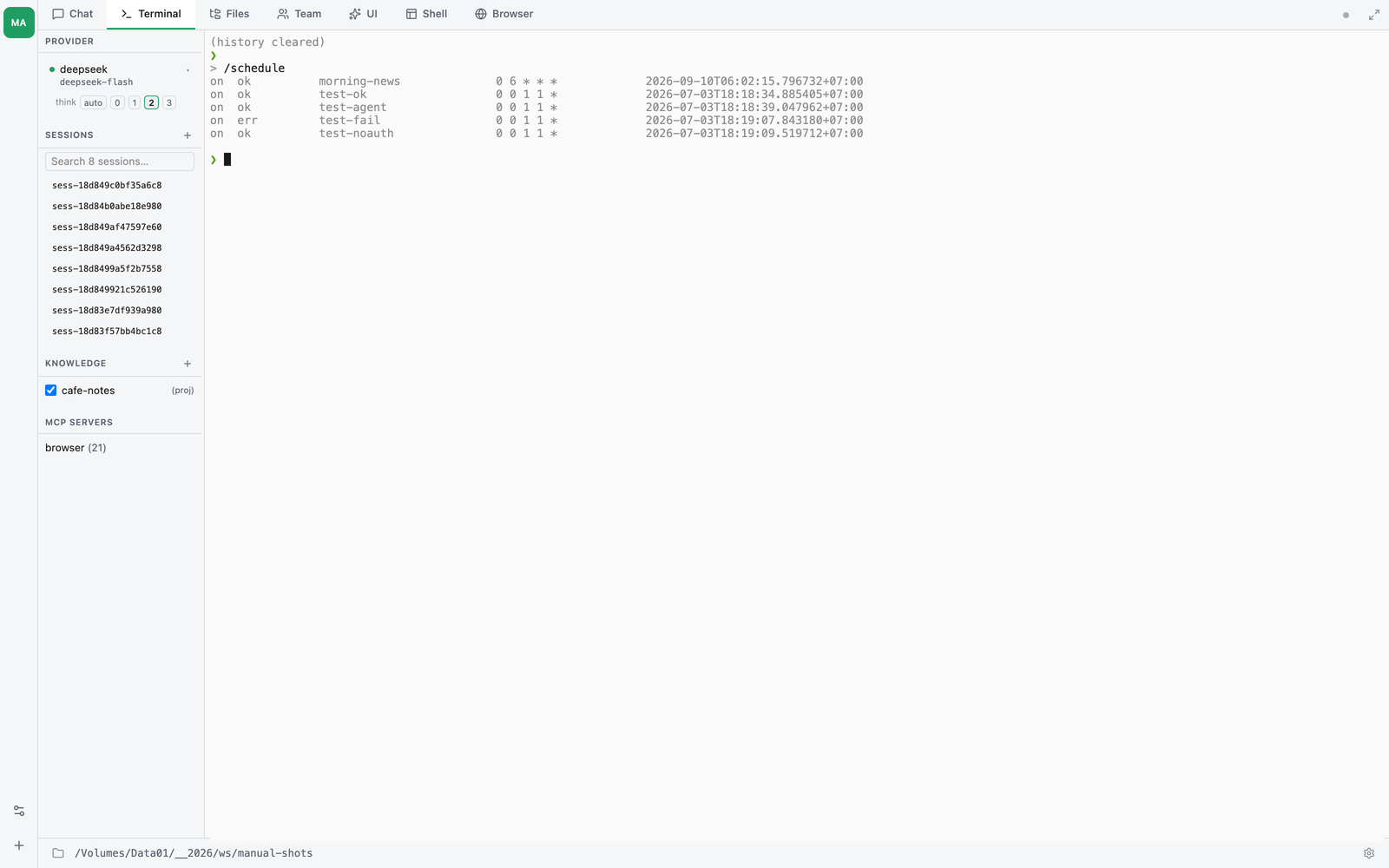
Most schedule management is also available without dropping back to the shell. From the CLI REPL or the GUI’s Chat tab, type /schedule (or the shorter /sched):
| Slash | Behavior |
|---|---|
/schedule or /schedule list |
List all schedules with on/off flag and last-fire summary |
/schedule show <id> |
Pretty-print one schedule’s record as JSON |
/schedule run <id> |
Fire one schedule once, synchronously (non-blocking — REPL stays responsive) |
/schedule status |
Daemon status + recent-fires summary across all schedules |
/schedule pause <id> / /schedule resume <id> |
Flip enabled without removing the entry |
/schedule rm <id> (or remove / delete) |
Remove a schedule from the store |
/schedule install |
Install the daemon (launchd plist on macOS, systemd-user unit on Linux) |
/schedule uninstall |
Stop the daemon and remove the supervisor entry |
/schedule add (or new / create) |
GUI: opens a form modal (see below). CLI: prints help pointing at the shell subcommand |
/schedule preset list (or ls) |
List the four packaged KMS-maintenance templates |
/schedule preset add <id> --kms <name> |
Instantiate one of them — see presets |
/schedule add is the one command that behaves differently across surfaces. Multi-line prompts and nine optional flags don’t fit on one REPL line cleanly, so:
- In the GUI Chat tab,
/schedule addopens a form modal pre-filled with the current working directory and a sample cron. Three helpers cut the typing: - Cron preset chips (
Every 5 min,Hourly,Daily 9am,Weekdays 8:30,Weekly Mon 9am,Monthly 1st) fill the cron field with one click. The matching chip lights up if the field already holds that pattern. - Live next-fire preview validates the cron 300 ms after you stop typing and shows the next 3 fires inline (e.g.
next fires: Tue, May 6 9:00 AM · Wed, May 7 9:00 AM · …). Typos surface as inline errors — no surprises at submit time. - “Run when file in workspace changes” checkbox sets
watchWorkspace: trueon the entry so the daemon fires the job on filesystem events undercwd, not just on the cron schedule (see Workspace-change trigger). Fill inid,cron,prompt, and any optional fields, then click Save. The backend validates required fields, cron syntax, and thatcwdexists; errors render inline in the form. On success the modal flashes a green confirmation and auto-dismisses. - In the CLI REPL,
/schedule addprints the equivalent shell-subcommand syntax with all flags so you can copy-paste it into a terminal.
The slash and CLI surfaces share one store — schedules added via either route show up in the other’s list, fire from the same daemon, and write to the same ~/.config/thclaws/schedules.json.
Inspecting fires
Per-job logs go to ~/.local/share/thclaws/logs/<id>/:
ls -lt ~/.local/share/thclaws/logs/morning-brief/ | head -5
tail -f ~/.local/share/thclaws/logs/morning-brief/$(ls -t ~/.local/share/thclaws/logs/morning-brief | head -1)
The daemon’s own log (startup messages, scheduler tick announcements) is at ~/.local/share/thclaws/daemon.log.
Troubleshooting
A schedule didn’t fire when it should have.
1. Check thclaws schedule status — is the daemon running?
2. Check ~/.local/share/thclaws/daemon.log for errors.
3. Verify enabled: true in the store.
4. Remember: skip-catch-up is the default. A schedule added at 09:00 with cron 30 8 * * * won’t retroactively fire 08:30 today; it’ll fire tomorrow at 08:30.
Daemon refuses to start: “another daemon is already running.”
A previous daemon is alive. thclaws schedule status shows the PID. Either let it run, or kill <pid> and try again.
Stale PID file after a crash.
thclaws schedule status reports it. The next thclaws daemon start automatically reclaims the file — no manual cleanup needed.
Laptop sleep.
On macOS, a LaunchAgent won’t fire while the laptop is sleeping (lid closed). Schedules that should fire during sleep need WakeMonitor plumbing (deferred — not yet supported). For now, expect “fires while you’re using the laptop” semantics.
Two schedulers running.
If you’ve installed the daemon AND have thclaws --cli open without --no-scheduler, both surfaces will tick the same store. They use the same skip-overlap guard so duplicate fires are rare, but the cleaner setup is --no-scheduler whenever the daemon is installed.
Limitations to know
- Windows daemon is not yet shipped.
schedule installerrors with “not yet supported on this platform” on Windows. Steps 1 and 2 (manual run + in-process scheduler) work cross-platform; only the daemon path (and thereforewatchWorkspace) is macOS/Linux for now. - No IPC. The daemon and CLI talk only via the on-disk store + PID file. Live
schedule logs --tail,schedule reload, and daemon-side metrics are deferred. Edits toschedules.jsontake effect within 30 seconds via the polling tick (the watcher reconciler picks upwatchWorkspacetoggles on the same cadence). - No catch-up policy field for cron. Skip-catch-up is the only policy for recurring schedules; manual catch-up via
lastRunediting is the workaround. One-shots (--at/--in) are the deliberate exception — arun_atin the past always fires. - No log rotation.
~/.local/share/thclaws/daemon.logand~/.local/share/thclaws/logs/<id>/*.loggrow unbounded. For now, prune by hand or via your own cron entry. - Workspace watch ignores are hardcoded.
.thclaws/,.git/,node_modules/,target/,dist/,build/,.next/,.cache/,.DS_Store. No.gitignoreintegration yet. If you need finer control, dropwatchWorkspaceand rely on cron only. - OS watch limits. Linux’s
inotifydefaults to 8192 watches per user; recursive watches on huge trees can blow that. The daemon logs the failure and skips the watcher; other schedules keep working.