
Chapter 27 — thClaws.cloud
thClaws.cloud is the catalog + hosted runtime for thClaws agents. It
turns the folder-is-an-agent model (Chapter 8) into something you
can browse, publish, install on someone else’s machine, or rent a
hosted workspace for. From your desktop thClaws, the cloud feels like
git for AI agents — paste a CLI token once in Settings, then every
catalog op (/cloud get, /cloud publish, /cloud list, …) runs as
a slash command inside an open thClaws session.
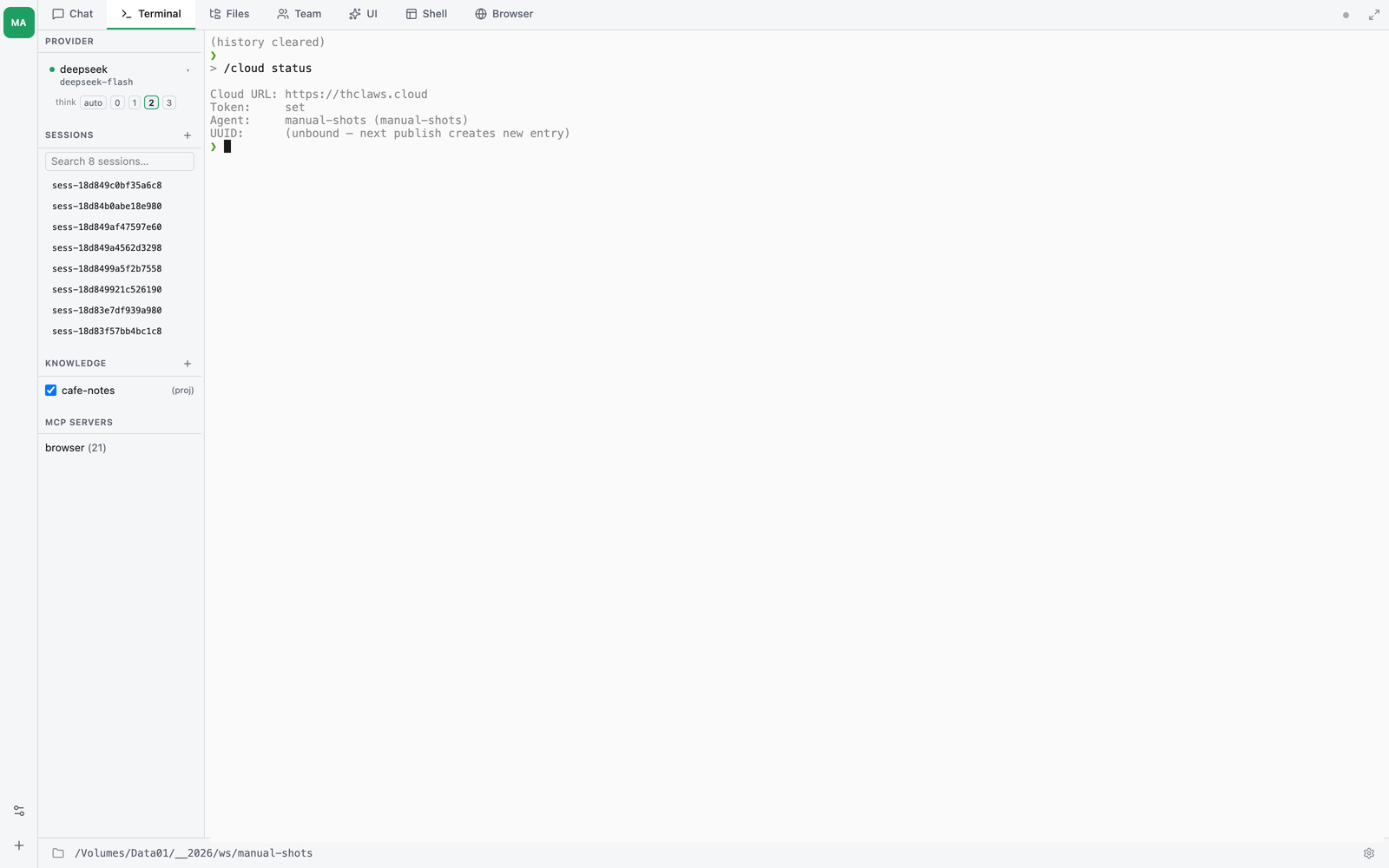
What this chapter covers (client side). Browsing the catalog, publishing your own agents, getting agents into a local folder, and the new
agent.{name, description, uuid}block insettings.json. The operator-side runbook for running your own catalog server lives in the dev plan (dev-plan/34) and the workspace-privatethclaws-cloud/source tree.
Agent Templates and the folder-is-an-agent model
The catalog calls a published agent an Agent Template: a folder someone finished and shared, ready to become an agent in your own workspace. Getting one copies it in; from that moment it is yours, with its own conversations and settings, and the template it came from stops mattering. Putting several of them in one workspace is chapter 35.
Anywhere thClaws runs, an AI agent is a folder. Three files at the root of that folder make it complete:
AGENTS.md— the agent’s instructions (system prompt + persona).manifest.json— catalog metadata (slug, license, icon, tags). Only needed to publish../.thclaws/— local state (settings, KMS, sessions, memory).
When you cd into the folder and run thClaws, you’re “running that
agent”. When you publish, the catalog packages those files into a
tarball; when someone else runs /cloud get <slug> from inside their
own thClaws session, they get the same folder. The cloud is just a
way to move folders between machines.
Setting the catalog URL + a CLI token
Two things bind your desktop to a catalog server:
- Cloud URL —
settings.json::cloud.url. Defaults to the public instance (https://thclaws.cloud); point athttp://localhostor your own self-hosted instance by overriding it. - CLI token — a
thc_…string from the catalog dashboard, stored in the OS keychain (never insettings.json).
Settings → thClaws.cloud has fields for both. Paste the URL, paste the token you mint at your dashboard (+ New token), hit Save — every slash command in the rest of this chapter works immediately.
The token never goes through a shell argument or environment variable —
the GUI stores it directly in the OS keychain (macOS Keychain / Windows
Credential Manager / Linux Secret Service), and every catalog request
sends it as a Bearer header from inside the engine process. No ps
or shell-history leak.
Why no CLI subcommand? Earlier releases had a
thclaws cloud login --token …flow. Removed because tokens threaded throughargvended up in shell histories and anyps-style tool dump. Settings UI + keychain is the only way now. Running any oldthclaws cloud …command prints an error that points at the new flow.
Browsing the catalog
From inside any thClaws session (REPL or Chat tab):
❯ /cloud status
thClaws.cloud — https://thclaws.cloud (token: ✓ stored)

❯ /cloud list
- hello-world           v0.1.0  Hello-world demo agent (jimmy)
- legal-doc-reviewer    v0.4.2  Reviews contracts paragraph-by-paragraph (acme)
- weekly-research       v1.0.0  Saturday-morning newsletter writer (rin)
...

❯ /cloud list --mine
- weekly-research       v1.0.0  Saturday-morning newsletter writer (you)
Each row is a single agent in the catalog. The slug is what you pass
to /cloud get.
Installing an agent into a folder
/cloud get always installs into the current session’s working
directory. The typical flow:
# 1. From a shell — make an empty folder for the agent and cd into it.
mkdir my-hello && cd my-hello

# 2. Start a thClaws session there.
thclaws            # GUI default; --cli for the REPL
Then inside the session:
❯ /cloud get hello-world
Downloading hello-world (v0.1.0) …
Extracted to /Users/jimmy/my-hello/
  ✓ AGENTS.md
  ✓ manifest.json
  ✓ skills/greet.md
Done. /reload to pick up the new AGENTS.md.
The engine downloads the tarball, extracts every file into the cwd, and
the next /reload reads the new AGENTS.md. No shell tab-out needed.
The folder-safety check
/cloud get refuses to overwrite a non-empty folder unless the folder
already holds the same agent (matched by UUID, see below). The
check works like this:
| Target folder state | Behaviour |
|---|---|
| Empty | Fresh install. |
Has AGENTS.md / manifest.json with a matching agent.uuid |
Safe update — overwrites in place, preserves your .thclaws/ session state. |
Has AGENTS.md / manifest.json with a mismatched UUID |
Abort. The folder belongs to another agent — /cloud unbind first, or use a different folder. |
| Other random files (notes, scratch, etc.) | Abort — install into an empty folder instead. |
This is intentional — it prevents a typo from clobbering an
in-progress agent or someone else’s work in the same directory. The
slash surface has no --force override on purpose; just /cloud get
into a fresh, empty directory when in doubt.
Publishing an agent
When you’ve built an agent in a folder and want it in the catalog, start a thClaws session in that folder and use the slash command:
❯ /cloud publish # uploads the cwd
/cloud publish does three things:
- Tar + gzip the folder. Secrets, sessions, KMS pages, and the
./.thclaws/state directory are stripped automatically — you can re-publish daily without leaking conversation history. - Upload to the catalog using your CLI token.
- Stamp the agent identity back into
settings.json(see the next section).
If manifest.json is missing or invalid, publish aborts with a clear
error. Minimum required fields: id, name, description, version.
Publishing an HTML page
Separately from agents, thClaws.cloud will host a single self-contained HTML file for you at a private URL:
❯ /publish dashboard.html
published → https://k3m9qp2wv7xa.thclaws.app  (expires in 3 days)
The file has to stand on its own — inline the CSS and JS, because nothing beside it is uploaded. What you get back is a 12-character subdomain that is unguessable rather than secret: anyone with the link can open it, and it stops working after three days.
It needs a thClaws.cloud token and a credit balance above zero, for the same reason everything else here does — it is the account that pays for the hosting.
This is the natural end of a “build me a dashboard” session: the agent writes the page, you look at it in the Files tab (chapter 4), then publish it to send someone the link.
Agent identity in settings.json
A new top-level agent block in ./.thclaws/settings.json carries
this folder’s catalog identity:
{
  "agent": {
    "id": "my-research-bot",
    "name": "My Research Bot",
    "description": "Saturday-morning newsletter writer",
    "uuid": "1f9c1d70-3a26-43c4-9c40-1b1b6e3e3a01"
  }
}
- id / name / description — copied from
manifest.jsonat publish time. Used by the catalog UI and by/cloud get’s safety check. - uuid — assigned by the catalog the first time you publish
from this folder, written back into
settings.json. Subsequent publishes hit the same catalog row (version bump). The UUID is what/cloud getmatches against to decide “is this folder the same agent?”
You normally don’t edit this by hand. The GUI Settings → Agent
identity panel lets you tweak name / description (handy before
publishing — the description shows up in catalog listings) but
intentionally hides uuid.
Forking a downloaded agent
If you /cloud get-ed someone else’s agent and want to fork it under
your own name, from inside the agent’s folder session:
❯ /cloud unbind            # clears settings.json::agent.uuid
❯ # in the same session: edit AGENTS.md, manifest.json — change `id` to something free
❯ /cloud publish           # gets a fresh UUID
Without /cloud unbind, the next publish would try to update the
original author’s catalog row (and fail with a permission error — the
catalog gates publishes by author).
Visibility — public / unlisted / private
Every published agent has a visibility setting (three values):
| Visibility | Who can see / install it |
|---|---|
public |
Everyone — shows in /browse, the /a/<slug> page, installable with /cloud get. Superadmin review only (a normal author can’t self-promote to public). |
unlisted (default) |
Anyone with the link — hidden from /browse, but the /a/<slug> page works and /cloud get <slug> installs. The share-link default for self-published agents. |
private |
Only the author and root |
New agents from a verified (non-superadmin) user publish as unlisted
by default — reachable by sharing the page link, not listed in the
public catalog. A private agent is hidden from every path (list, detail,
/cloud get, fork all 404 — not 403, so private slugs aren’t
enumerable).
Changing visibility — open your agent’s page on the web
(https://thclaws.cloud/templates/<slug>); a toggle appears when you’re the
owner (or root). An author may flip between private and unlisted
freely; promoting to public is superadmin-only (else 403). There is no desktop
/cloud verb for this — it’s web-only (it calls
PATCH /api/agents/<slug>/visibility under the hood). Use private
for agents still in beta/testing, or ones you want to share with just
your own team before going public.
Hosted workspaces (rent, don’t install)
If you don’t want to install agents on your laptop, the catalog also runs them as hosted workspaces — one container per workspace, a URL you open in any browser, a real chat UI backed by the same engine you’d run locally.
From the catalog web UI:
- Browse to an agent’s detail page.
- Click Install on hosted and pick (or create) a ready workspace.
- The catalog installs the agent into that existing workspace —
overwriting its current agent definition — and redirects you to the
chat UI at
/u/<your-handle>/<slug>/(the handle is a stable per-user id, so two users can each have a workspace named<slug>without their URLs colliding).
Hosted workspaces support both BYOK (paste your own provider keys under Settings → Hosted keys) and the thClaws.cloud gateway (pay-per-use proxy with credit billing — see below). The choice is a radio toggle when you create the workspace.
Syncing a local folder with a hosted workspace
A hosted workspace isn’t a dead end you can only reach through the browser. You can pair a local folder with one and move files both ways — edit on your laptop, push, keep working in the browser; or the reverse.
❯ /cloud push                 # local folder → hosted workspace
❯ /cloud pull                 # hosted workspace → local folder
❯ /cloud revision             # who is on which revision, and is anything dirty
The first /cloud push from an unpaired folder pairs it. After that
the binding is remembered, so plain push / pull keep talking to the
same workspace. Target a different one with --workspace <slug>.
/cloud revision is the one to run first. It is strictly
read-only — it will not wake a paused workspace, because a status
question shouldn’t cost you a pod resume — and the local half prints
even when you are offline or logged out:
❯ /cloud revision
Local:     rev 12, pushed 2 hours ago, pulled 3 days ago
Cloud:     rev 12
Changes:   clean — no work changed since rev 12 (3 runtime state file(s) did)
Two things in that output are worth understanding.
Matching revisions mean the two ends last agreed at that number —
not that the files are identical today. The Changes: line is what
tells you whether this folder has drifted since then, and it is
computed by hashing the working tree locally, so it answers even when
the workspace is asleep.
Runtime state is counted separately. Sessions, caches and the rest
of .thclaws/state/ rewrite themselves just by the engine running, so
counting them as “your changes” would mark every folder dirty forever.
They still ride the next push — they are tallied apart, not hidden.
Flags
| Flag | Effect |
|---|---|
--dry-run |
Report what would move; move nothing |
--delete |
Also remove files on the destination that are gone from the source. Without it, sync only adds and updates |
--force |
Push (or pull) through the divergence guard — the check that stops you overwriting changes the other end made since you last agreed |
--force-rebind |
Re-point this folder at a different workspace, bypassing the binding/identity check. Implies --force — deliberately re-pointing a folder is an overwrite |
--workspace <slug> |
Act on a named workspace instead of the bound one |
Start with --dry-run. --force exists for when you know the other
end’s changes are disposable; if you are not sure, /cloud pull
--dry-run first and look at what you would lose.
Not available on a multiuser pod. These commands act on one directory tree addressed by the process working directory, and a multiuser pod shares one process across every tenant — that directory is the pod root holding everyone’s
workspace-<id>/. A push there would ship every tenant’s files into one tenant’s workspace; a pull would overwrite all of them. So they refuse outright rather than trying to be clever.
Pay-per-use gateway (alternative to BYOK)
For users who don’t want to manage Anthropic / OpenAI / Gemini
accounts, thClaws.cloud offers a gateway: top up credits once,
then call any model through gateway.thclaws.cloud/<provider>/...
with a gw_v1_… token. The gateway forwards to upstream, meters the
response, and debits your balance.
To use the gateway from a desktop thClaws:
- Mint a gateway access key in the catalog UI: /gateway/keys →
Mint new gateway key → copy the
gw_v1_…string. - Top up: /credit → pick a pack ($5 / $20 / $100). Bonus credit on the larger packs.
- Configure thClaws to point at the gateway:
bash
   export ANTHROPIC_API_KEY=gw_v1_…
   export ANTHROPIC_BASE_URL=https://thclaws.cloud/gateway/anthropic
   export OPENAI_API_KEY=gw_v1_…
   export OPENAI_BASE_URL=https://thclaws.cloud/gateway/openai/v1
   # …same for GEMINI_*, OPENROUTER_*
(Or set the matching*_API_KEY/*_BASE_URLfields in the GUI Settings → Providers panel.) - Run thClaws normally. Calls go via the gateway; spend lands in /credit/usage.
For hosted workspaces, the gateway is auto-wired when you pick Gateway at workspace-create time — the runner gets the env vars injected, no copy-paste needed.
Credit is the only gate
There is no model-tier ladder — the old starter/pro/enterprise
gating was dropped. Positive credit balance ⇒ any active model is
callable; a 402 Payment Required only fires when your balance hits
0. The price differential does the rest: a heavy Opus turn simply costs
more per call than Haiku, so expensive models naturally burn credit
faster. (model_pricing.tier still exists but is display-only — it sorts
the pricing page, it doesn’t block anything.)
Shared agents (one company agent, many people)
A shared agent is a single company-owned agent that several people use at once — think a support bot, an internal research assistant, or an onboarding helper that the whole team should share without each person re-installing or re-configuring it. Shared agents are a hosted-cloud feature (they run as hosted workspaces, not on your laptop), managed from the Dashboard → Shared agents panel.
How it’s structured:
- One read-only company “brain”, many private workspaces. The
owner uploads the agent’s brain —
AGENTS.md, the company KMS, skills, slash commands, andmcp.json(tool config, never credentials). Every member’s workspace mounts that brain read-only and composes it in. Each member still gets their own private space: their chat history, their files, their own additive KMS, and their own MCP logins — none of which is visible to other members or the owner. - Locked to the company setup. In shared mode the engine takes
instructions only from the company
AGENTS.md(a member’s ownAGENTS.md/~/.config/~/.claudeare ignored), and the model can be pinned by the owner. This keeps every member on the same agent. - Gateway-only, owner pays. Shared agents have no BYOK and no
.env— all inference goes through the thClaws.cloud gateway and is billed to the owner. The owner sets a per-member daily spend cap (cents, resets each UTC day) on top of a workspace-wide daily cap; a member who hits their cap is blocked until it resets, so one person can’t run up the whole bill. - Read-only means fork to customize. A member can’t edit the shared brain or write to the company KMS — those return a clear “shared KMS is read-only — fork to edit” message. To tailor it, fork the shared agent into your own private agent (a normal catalog agent you own and can change freely).
From the Dashboard, the Shared agents panel separates agents
you own (where you manage members, caps, brain upload, and see
usage) from agents shared with you (which you just launch and
use). The owner adds members by handle, sets each member’s cap,
uploads or refreshes the brain (brain.tgz containing AGENTS.md,
kms, skills, commands, mcp.json — or builds it from an
existing agent), and watches per-member spend in the usage breakdown.
Quick reference
All catalog ops happen inside an open thClaws session — every old
thclaws cloud … CLI form prints an error pointing at the
slash-command equivalent.
| Command | Where | What it does |
|---|---|---|
| Settings → thClaws.cloud | GUI | Cloud URL + CLI token (paste / clear). The only path for login/logout. |
/cloud status |
In-session slash | Show resolved URL + token state |
/cloud list [--mine] |
In-session slash | Browse the catalog |
/cloud get <slug> |
In-session slash | Install into the session’s cwd (aborts on a non-empty/mismatched folder) |
/cloud publish |
In-session slash | Upload the session’s cwd |
/cloud unbind |
In-session slash | Clear agent.uuid so the next publish creates a new catalog row |
/cloud revision (or rev) |
In-session slash | Local vs cloud sync revision + whether this folder is dirty. Read-only; never wakes a paused workspace |
/cloud push / /cloud pull |
In-session slash | Sync files with a hosted workspace. --dry-run · --delete · --force · --force-rebind · --workspace <slug> |
| Settings → Agent identity | GUI | Edit this folder’s agent.name / description |
/credit (web) |
Catalog UI | Top up + view balance + browse pricing |
/gateway/keys (web) |
Catalog UI | Mint gw_v1_… access keys |
/credit/usage (web) |
Catalog UI | Per-call spend + per-workspace breakdown |
What thClaws.cloud is not
A few things to set expectations:
- Not a model host. Catalog agents still call out to Anthropic / OpenAI / Gemini for inference — either via your own BYOK keys or via the cloud gateway as a billing proxy. thClaws.cloud doesn’t train or serve LLMs itself.
- Not session storage. Conversation history stays in
./.thclaws/state/sessions/on the machine that ran the agent. The cloud stores agent files, not conversations. - Not required. Every chapter before this one works with no
network at all. The cloud is additive — install thClaws, write
AGENTS.md, and you have a useful agent without ever signing up.