Chapter 28 — Browser automation
Give your agent a real web browser. thClaws drives a full Chromium through Microsoft’s official Playwright MCP server — the agent navigates, clicks, fills forms, reads pages, and runs JavaScript-heavy sites the way a person would, not by guessing pixel coordinates. You get a Browser tab to watch it work, take over to log in yourself, and hand control back. Built across v0.48–v0.52.
This is the inverse of “computer use” screenshot tools: the agent works from the page’s accessibility tree (fast, reliable, cheap), and can also see the rendered pixels when a page is visual-only.
When to use it (vs. WebFetch)
thClaws already has WebFetch / WebScrape for pulling static pages.
Reach for the browser when fetch can’t do the job:
- Logged-in / authenticated sites — you sign in once, the agent works inside your session.
- JavaScript-heavy apps — SPAs, infinite scroll, content that only appears after interaction.
- Forms and flows — multi-step submissions, file uploads, dialogs.
- “Fix this for me” — the 12-gram pattern: you’re stuck on a broken web form, you tell the agent “figure out why Submit is greyed out and send it,” and it reads the HTML, JS, console, and network to do it.
For a one-shot read of a public article, WebFetch is lighter.
Turning it on
Browser automation is on by default since v0.49.2 — every workspace
gets it with no configuration, as long as Node.js (npx) is on your
PATH (Playwright is a Node package).
To turn it off, or force headed/headless, set it in
.thclaws/settings.json:
{
  "browserEnabled": false,        // opt out entirely
  "browserHeadless": true          // force headless even on desktop
}
Headed or headless is decided for you when browserHeadless is unset:
| Where | Resolves to | Why |
|---|---|---|
| Desktop with a display | headed | a real Chromium window opens beside the app the first time the agent uses a browser tool — watch it, or interact directly |
Linux with no DISPLAY / WAYLAND_DISPLAY |
headless | there is nothing to show a window on |
| Cloud runner | headless | same, and the Browser tab’s live view is your window (see below) |
Nothing is downloaded until first use: Chromium launches lazily on the first browser tool call, takeover, or screencast start — so a headed desktop doesn’t pop a Chrome window at app start, and an idle workspace doesn’t pay ~150 MB for a browser nobody used.
On thClaws.cloud, it’s off unless you ask
Cloud runners set THCLAWS_BROWSER_ENABLED=0, which flips the
default off for the whole fleet — a runner that would never open a
browser shouldn’t carry one. So a hosted workspace has no browser tools
until you opt in:
{ "browserEnabled": true }
That is a real setting layered on top of the default, so it wins. The env var only moves the default; it can’t override a workspace that has asked for a browser.
Except in a shared (multiuser) workspace, where it stays off and can’t be turned on. Your files are isolated there — each member gets their own folder — but a browser isn’t a file. It’s one Chromium with one cookie jar for the whole workspace, so if one member logged into a site, everybody’s agent would be logged in as them, and any of them could read it back. thClaws refuses rather than letting that happen quietly, and says so once in the chat. If you need the browser, use a personal workspace.
Other knobs
These are environment variables, for people packaging thClaws rather than using it day to day:
| Variable | Effect |
|---|---|
THCLAWS_BROWSER_ENABLED=0 |
Turn the default off fleet-wide (as above) |
THCLAWS_BROWSER_MCP_CMD |
Replace the whole launch command. The cloud runner image sets mcp-server-playwright --no-sandbox — the preinstalled server — so a pod cold start never hits the npm registry. Desktop default is npx -y @playwright/mcp@latest |
THCLAWS_BROWSER_VIEWPORT="W,H" |
Page size, 1920×1080 by default, because Playwright’s own 1280×720 makes many sites render mobile-ish. /doctor prints the size actually in force |
THCLAWS_BROWSER_FRAME_MS |
How often the live view sends a frame, in milliseconds (default 80, i.e. ~12 fps). Raise it on a slow link |
No Node? On a machine without
npx, the Browser tab shows a setup hint instead of erroring, and the agent simply runs without browser tools. Install Node.js (e.g.brew install node) and restart.
The Browser tab
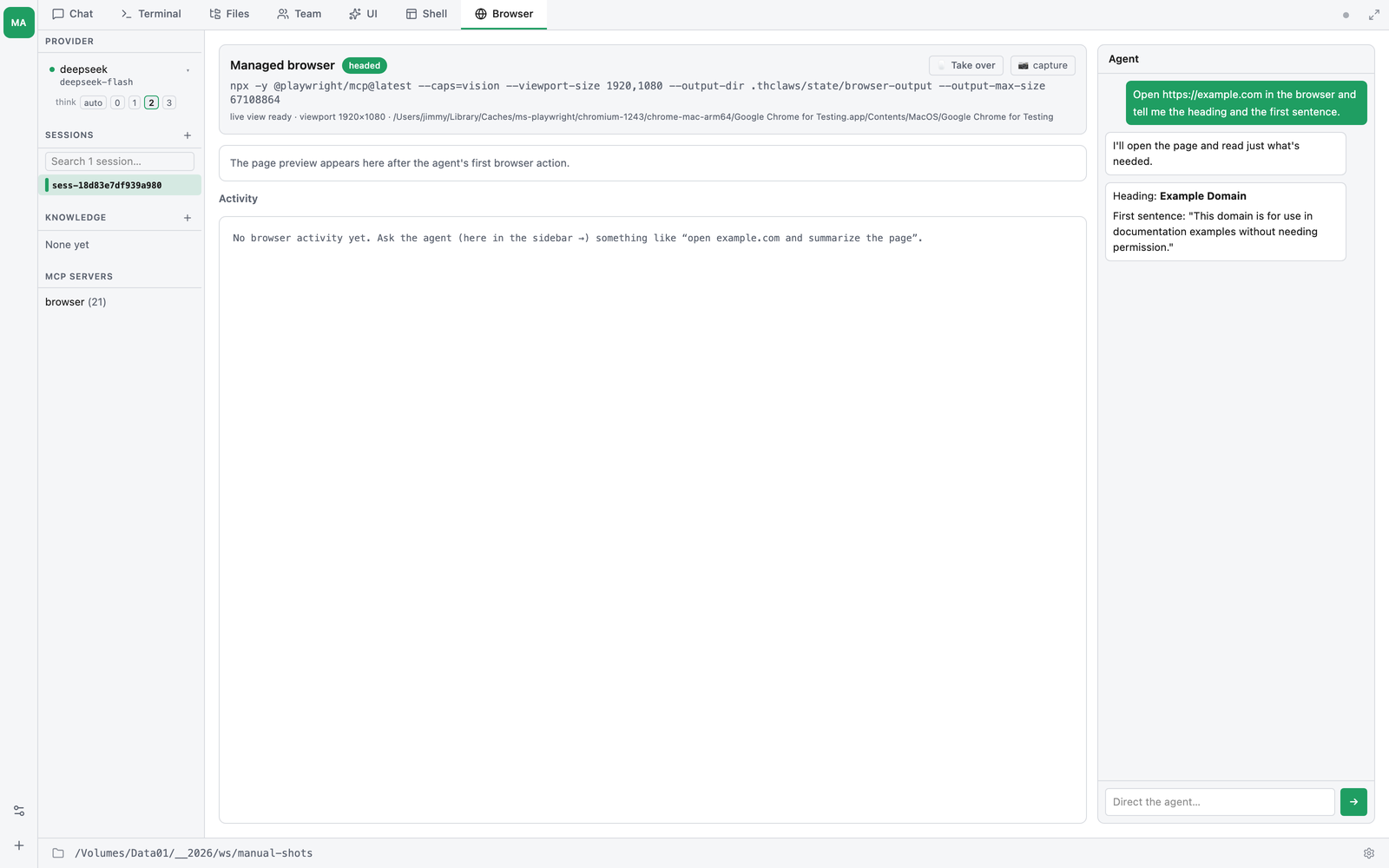
When browser automation is enabled, a Browser tab appears. It has three parts:
Status — whether the managed browser is on, headed or headless, the launch command, and a warning if the browser binary can’t be found.
Live view / screenshot — the rendered page:
- On cloud / headless, this is a live screencast (a continuous video-like stream) once you enter takeover, so the headless browser has a real window after all.
- Otherwise it auto-captures a fresh screenshot ~1 second after every browser action, plus a manual 📷 capture button. Visual-only content (canvases, charts) shows here even when the accessibility tree can’t describe it.
If the status card says “No Playwright Chromium found” — the tab still works, but on ~1 frame a second instead of a real live stream, because the live view needs Playwright’s own Chromium and the engine won’t drive your everyday Chrome (doing that breaks browsing outright). Install it once:
npx playwright install chromium
Then restart thClaws. Hosted workspaces already have it. /doctor prints a
browser: line with what was found, the resolved viewport, and whether
Chromium is up.
Activity feed — every browser_* tool call and result streams in
with timestamps, plus live console errors and page navigations (so
you can see what the agent — or the page — is doing).
Agent sidebar — a compact chat docked on the right, the same
conversation as the Chat tab. Direct the agent without leaving the tab:
“log-in is done, take over and export the report.” It accepts slash
commands too (/clear, etc.) and stays in sync with the other tabs.
Taking over — log in yourself, then hand back
Some sites you have to log into personally (your bank, LinkedIn). Click 🖱 Take over and the live view becomes a remote control:
- Click anywhere on the page — including shift-click and ⌘/Ctrl-click,
- Scroll with your mouse wheel,
- Type with your real keyboard: click the page once to give it focus (it gets a solid outline), and every key goes straight to the site, modifiers and all — ⌘A, Ctrl-L, a held arrow key. Esc gives the keyboard back to thClaws.
- Paste: use the Paste button, or Ctrl-V — both ask the system for the clipboard once (macOS shows a small “Paste” confirmation you click), then put the whole string in at once rather than a character at a time. ⌘V does not reach the page here, even though it works everywhere else in thClaws: macOS delivers it as a native paste command to the element under focus, and the takeover frame is not one the system will paste into. Ctrl-V and the button both go the other route.
- The text box below is still there for long strings — over a slow link it beats typing,
- the quick Enter / Tab / Esc / ⌫ buttons, and
- a URL bar + back button to navigate.
If the agent opens a new tab, the view follows it, and a tab strip appears above the page. Click a tab to pin the view there — useful when you’re reading something and don’t want to be yanked away — and click it again (or follow agent) to let it follow along again.
If the page the view was on closes, you get “view detached — reattaching…” rather than a frozen last frame. And more than one person can watch at once: the desktop window and a phone on thClaws Remote see the same stream, and one of you closing it doesn’t blank the other.
Do your login, then tell the agent in the sidebar to continue. On desktop you can also just use the headed Chromium window directly — the agent shares the same browser, so whatever you do (sign in, accept a cookie banner) is there when it takes over.
Logins persist across restarts
The browser keeps a profile on disk, so cookies and sessions survive browser restarts — and, on cloud, pod restarts and pauses. Log into a site once and the agent stays logged in next time, without you re-authenticating every session.
The profile lives outside your workspace folder, and is explicitly stripped from agent publishing — so your cookies can never leak into an agent you share on the catalog.
Safety notes
- The browser runs with your privileges and (when you’re logged in) your sessions. Treat it like handing the agent your browser: fine for trusted tasks, think twice before pointing it at sensitive accounts unattended.
- Browser tools are mutating — under
askpermissions the agent asks before acting; underautoit just goes. See Chapter 5 — Permissions. - The takeover controls are yours, routed straight to the browser — they don’t go through the agent or cost tokens.
Troubleshooting
| Symptom | Fix |
|---|---|
| Browser tab shows “command not found” | Install Node.js so npx is on PATH, then restart thClaws |
| No Browser tab at all | browserEnabled is false in settings.json, or Node isn’t installed |
| No Browser tab on a hosted workspace | Expected — cloud runners default it off. Set "browserEnabled": true |
| Pages render like a phone | Viewport too narrow — set THCLAWS_BROWSER_VIEWPORT="1600,1000" |
| Agent “can’t see” a chart / canvas | Ask it to take a screenshot — it reads pixels via vision, not just the accessibility tree |
| Want zero windows on desktop | Set "browserHeadless": true |
| Logged out after a cloud pod restart | Fixed in v0.52.0 — update if you’re older |
| Live view greyed out / “one frame a second” | No Playwright Chromium on this machine. Run npx playwright install chromium, then restart thClaws. /doctor says which of the two it is |
| Live view is black | The view is on a tab that isn’t in front. Click that tab in the strip — thClaws brings it forward |
| Typing does nothing in takeover | Click the page first; the frame needs focus (solid outline, not dashed) |
| ⌘V does nothing in takeover (macOS) | Expected — use the Paste button or Ctrl-V. ⌘V still works everywhere else in thClaws |
| Browser tools missing in a shared workspace | Expected — see above. Use a personal workspace |
Under the hood
For engineers: the engine owns the Chromium process and attaches
Playwright MCP to it via a DevTools endpoint, so the agent’s tools and
your takeover drive one browser. Full internals — the
browser_cdp module, screencast, input, cookie snapshot/restore, and
the runner-image packaging — are in the technical manual’s
browser.md.