
Chapter 5 — Permissions
thClaws runs tools on your behalf: it edits files, runs shell commands, fetches URLs, and invokes MCP servers. Permissions decide which of those happen without your nod.
Permission modes
| Mode | Behaviour | How to set |
|---|---|---|
auto (default) |
All tools run automatically. Agents can chain edits and bash calls without interruption. | /permissions auto or --accept-all |
ask |
Mutating tools (Edit, Write, Bash) prompt for approval before running. Read-only tools run automatically. | /permissions ask or --permission-mode ask |
plan |
Read-only exploration — all mutating tools are blocked. Use it to survey a codebase before doing any work. See Chapter 18. | /plan enter (separate slash command — not via /permissions) |
linegated |
Approval prompts route to your LINE chat on the phone instead of asking on the desktop. See Chapter 21. | Auto-activates when the LINE bridge connects (pre-LINE mode is stashed and restored on disconnect). If you overrode with /permissions auto and want it back without disconnecting LINE, run /permissions linegated while the bridge is still connected — not persisted to settings.json (runtime state only). |
telegramgated |
Same idea for Telegram: approvals arrive as inline-keyboard buttons in your Telegram chat. See Chapter 23. | Auto-activates only — connecting the Telegram bridge switches to it, disconnecting restores the previous mode. /permissions telegramgated is not accepted; use /permissions auto or ask to override while still connected. |
messengergated |
Same again for Facebook Page Messenger, with approvals as quick-reply chips. See Chapter 24. | Auto-activates only, same as telegramgated. |
While
linegatedis active, the surface you typed from doesn’t matter. Every approval prompt routes to LINE — whether you typed in the Terminal tab, Chat tab, REPL, or the LINE bubble itself. The approver is a process-wide singleton (shared_session.rs:1842swapsstate.approverwholesale when the bridge connects) and has no awareness of which surface originated the tool call. Design rationale: your phone is the single “approval inbox” while paired, so someone typing in via LINE can’t trick you into approving theirBashthinking it was yours. If browser chat (/chat) is also open, the browser modal wins — better UX than LINE Quick Reply chips for long argument previews.To bypass while LINE remains paired, run
/permissions auto(no prompts anywhere) or/permissions ask(prompt locally on the desktop). Both also pullstate.approverback to the desktop approver, so even Ask-mode prompts surface in the Terminal / Chat tab rather than continuing to push to your phone — the LINE bridge connection itself stays up so the sidebar pill stays green and/permissions linegatedcan swap back. Alternatively, disconnect LINE from the GUI’s LINE Connect modal to restore your pre-LINE mode in one step.
Set the mode at startup:
thclaws --cli --permission-mode ask      # explicit
thclaws --cli --accept-all               # alias for --permission-mode auto
Or mid-session:
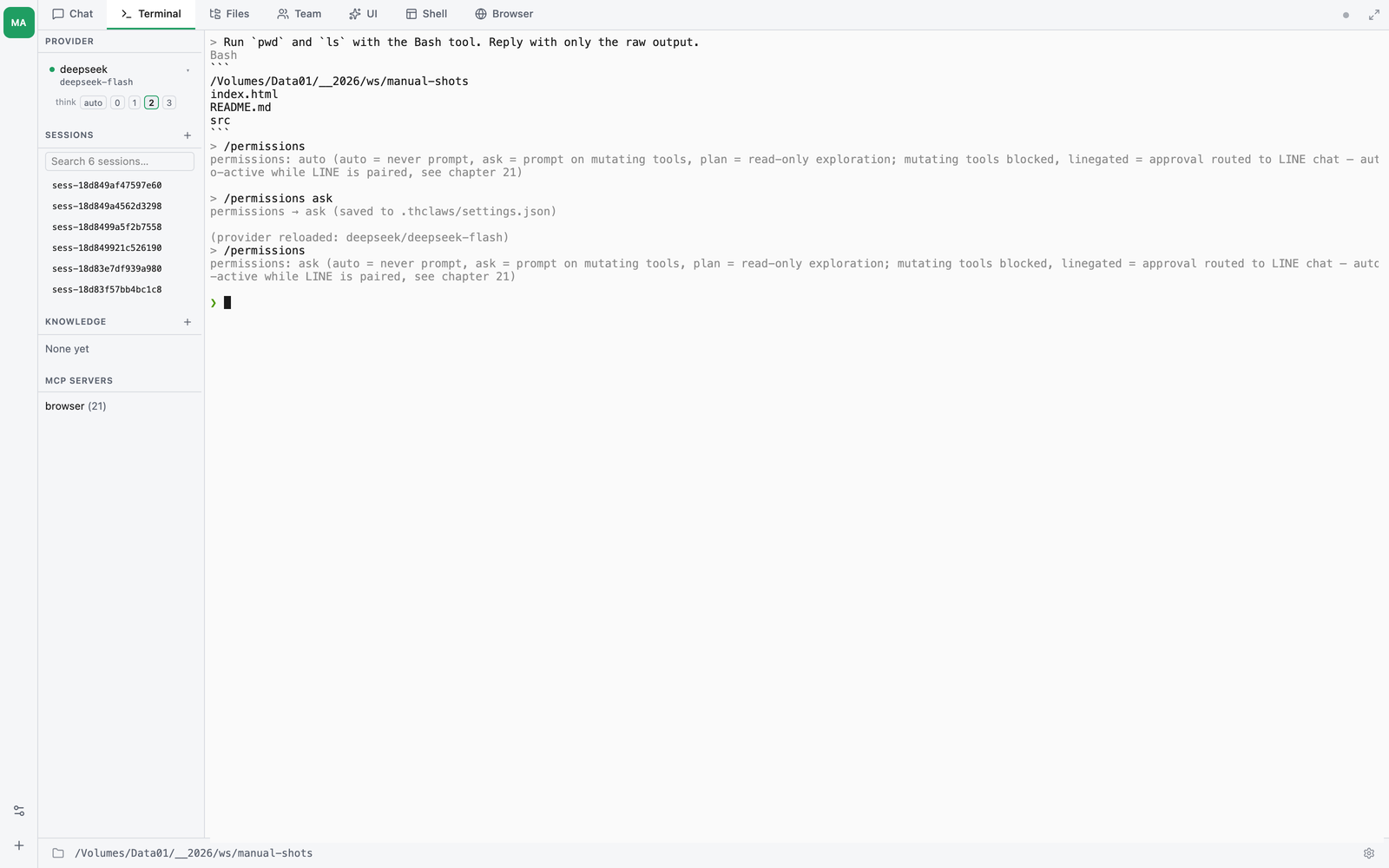
❯ /permissions auto
permissions: auto

❯ /permissions ask
permissions: ask
What the prompt looks like
In ask mode, when the agent wants to run (say) Bash:
[tool: Bash: npm install express] ?
 [y] yes   [n] no   [yolo] approve everything for this session
y— approve this one call.n— deny it; the model getstool was deniedas the result and usually revises its approach.yolo— flip toautofor the rest of the session. The tool runs and every subsequent tool call runs without asking.
What yolo is
yolo (“you only live once”) is a shortcut for “approve everything
for this session.” It’s the same thing the GUI’s Allow for
session button does. When you type yolo (CLI) or click the
button (GUI), thClaws:
- runs the tool that was waiting (pass through)
- flips the runtime mode to
autofor the remainder of the current session — every later tool call runs without prompting - sets a per-session “yolo” flag inside the approver — the flag is
not persisted to
settings.json; it’s runtime state only
The flag is automatically cleared when:
- you start a new session (
/new, the GUI’s “New session” button, or restarting thclaws) - you load an older session via
/load <id>or--resume - the LINE bridge disconnects (if it was active)
- you run
/permissions askto return to per-call prompting
If you want auto to stick across restart, use /permissions auto
(persists to settings.json) or --accept-all instead — these are
the same thing (/permissions yolo is an alias of
/permissions auto), but they save to disk. The yolo answer at a
prompt is deliberately session-scoped only.
The filesystem sandbox and tool allowlist still apply. yolo
only skips the approval prompt — it doesn’t disable the filesystem
sandbox (see below) and doesn’t override allowedTools /
disallowedTools in settings.json. Tools on the disallow list
remain blocked even under yolo.
A ⚠ marker appears alongside commands that look destructive —
rm -rf, sudo, curl … | sh, dd, mkfs, etc. — so you look
twice before typing y.
Read-only vs mutating defaults
Read-only (auto in ask mode) |
Mutating (prompts in ask mode) |
|---|---|
Ls, Read, Glob, Grep |
Write, Edit |
AskUser, EnterPlanMode, ExitPlanMode |
Bash |
TaskCreate, TaskUpdate, TaskGet, TaskList |
WebFetch, WebSearch |
Task (spawn subagent) |
|
| All MCP tools |
The intent: looking at your code is always free; changing your code, running commands, or reaching the network is a choice.
Fine-grained allow / deny lists
For project or user config, the permissions field in
.thclaws/settings.json (or ~/.config/thclaws/settings.json) accepts
two shapes:
Simple mode string
{ "permissions": "auto" }
Claude Code-style allow/deny
{
  "permissions": {
    "allow": ["Read", "Glob", "Grep", "Write", "Edit", "Bash(*)"],
    "deny":  ["WebFetch"]
  }
}
allowentries run without prompting (implicitautofor these).denyentries never run; attempts return an error to the model.Bash(*)allows all bash commands;Bash(git *)restricts the allow to git commands only (glob matching on the command string).
The flat form works too:
{
  "permissions": "auto",
  "allowedTools": ["Read", "Write", "Edit", "Bash", "Grep", "Glob"],
  "disallowedTools": ["WebFetch", "WebSearch"]
}
CLI flags for a single run
thclaws --cli \
  --permission-mode auto \
  --allowed-tools "Read,Write,Edit,Bash" \
  --disallowed-tools "WebFetch"
Flags override settings files for that process only.
The filesystem sandbox
Independent of the permission prompt: file tools are always scoped to
the working directory. Paths that escape via .., absolute paths
pointing outside, or symlink traversal are rejected before the tool
runs — regardless of permission mode. This is the guard that makes
yolo less scary.
If you want the agent to touch something outside the current directory, either launch thClaws from the parent directory (which widens the sandbox), or copy / symlink the file in first.
OS-level Bash sandbox (bash.sandbox)
The filesystem sandbox above scopes the file tools (Read/Write/Edit).
It does not confine what a Bash command writes — echo x > ~/secret
or python -c "open('/abs','w')" runs the shell directly, so an absolute
path escapes. A pre_tool_use hook (Chapter 13) can screen commands, but
screening a string is defeatable by obfuscation ($(printf …), eval).
bash.sandbox adds a hard, OS-enforced boundary around the Bash
subprocess (and everything it spawns) — the kernel blocks the write, so it
holds no matter how the command is written:
{
  "bash": {
    "sandbox": "workspace",
    "sandbox_write_paths": ["/some/extra/dir"],
    "sandbox_deny_read": ["~/secret-notes"]
  }
}
| Mode | Writable | Use |
|---|---|---|
workspace (default) |
the workspace + /tmp + package-manager caches (~/.cache, ~/.npm, ~/.cargo, …) |
normal dev — pip/npm/cargo still work |
strict |
the workspace + /tmp only |
untrusted runs; breaks tools that cache in $HOME |
off |
everything | opt out of confinement |
This is on by default (workspace). To turn it off, set
{ "bash": { "sandbox": "off" } }. If a legitimate command needs to write
somewhere outside the workspace + caches, add it to sandbox_write_paths
rather than disabling confinement entirely.
In workspace and strict, reads of secret dotfiles (~/.ssh, ~/.aws,
~/.gnupg, cloud creds, ~/.config/thclaws) are denied too. Enforced
by macOS Seatbelt (sandbox-exec) and, on Linux, Landlock (an LSM needing no
user namespace, so it works on stock Ubuntu 24.04 where bubblewrap is blocked
by AppArmor; bwrap is the fallback). The confiner is probed at runtime — if
it can’t actually enforce on this host, thClaws logs a loud one-time warning and
falls back to command-screening only rather than breaking your commands. So
turning the mode on is always safe: it either confines, or runs
unconfined-with-warning. It applies to subagent and workflow Bash
identically. Notes: v1 is filesystem-only (no network egress control), and
on Linux the Landlock path is
write-confinement only — the secret-read denial above holds under macOS
Seatbelt and the bubblewrap fallback, but not under Landlock, which is
the path most modern Linux hosts take. Treat read-denial as a macOS
guarantee and a Linux best-effort: on Linux, keep a secret out of a shell
command’s reach with file permissions, not with this.
Layering: the
pre_tool_usehook (soft policy/audit, Chapter 13) runs first and can deny;bash.sandboxis the hard floor under it.
MCP stdio spawn allowlist
MCP stdio servers are subprocesses spawned from a JSON config file
that may have been cloned from an untrusted repo (.thclaws/mcp.json
or similar — see Chapter 14). Because the command
field is an arbitrary binary path, thClaws gates every first-time
spawn through a separate approval:
[mcp] New MCP stdio server wants to spawn:
      name:    filesystem-mcp
      command: npx
      args:    @modelcontextprotocol/server-filesystem /tmp

This will run the binary with your user privileges. Only
approve if you trust the MCP config that requested it.
Approve and remember? [y/N]
A yes persists the command string into
~/.config/thclaws/mcp_allowlist.json; future spawns of the same
command go through without prompting. The allowlist is keyed on the
command field only — changing args doesn’t re-trigger the prompt,
so be deliberate when approving general-purpose runners like npx
or python.
Headless contexts (CI, GUI with no controlling TTY) fail closed
unless you explicitly set THCLAWS_MCP_ALLOW_ALL=1 in a trusted
environment. Don’t set that var on a shared machine or via a project
.env file — the dotenv loader blocks it for exactly that reason.
Per-agent overrides
Agent Teams and the Task sub-agent tool can set their own
permissionMode in the agent definition file — useful for letting a
“reviewer” agent run read-only even when the lead is in auto. See
Chapter 15 and Chapter 17.